Fix: Application Freezes When You Click Print (Hung Print Spooler)
The Problem
You hit Print in Word, Chrome, Acrobat, or pretty much anything else, and the application immediately locks up. Spinning cursor. “Not Responding” in the title bar. The print dialog never appears, or it appears and then hangs.
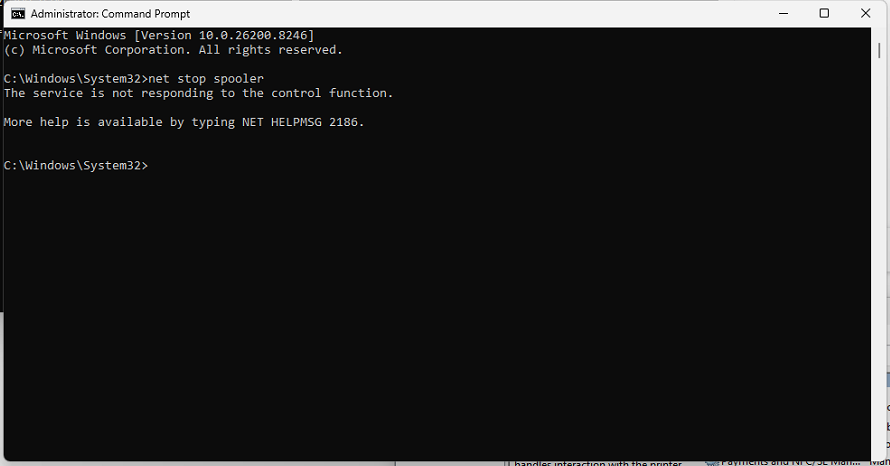
You try the obvious fix and stop the Print Spooler service:
net stop spooler
…and Windows throws this back at you:
1
2
3
The service is not responding to the control function.

More help is available by typing NET HELPMSG 2186.
Translation: the spooler process is stuck in a state where it can’t even respond to a stop request. It’s wedged. The service control manager is asking it nicely to shut down and getting nothing back.
Why This Happens
The Print Spooler (spoolsv.exe) manages every print job your PC sends to any printer, whether it’s local, network, or virtual (PDF printers, “Send to OneNote”, etc.). When it gets a corrupted job, a bad driver call, or a printer that disappeared mid-job, the spooler can hang. Once it’s hung, every application that tries to enumerate printers or send a print job freezes too, because they’re all waiting on the same unresponsive service.
The standard net stop spooler won’t work because the service is no longer responsive. You have to kill the process directly, clean out the stuck print jobs, and start fresh.
The Fix
Open Command Prompt as Administrator (right-click, then Run as administrator) and run these four commands in order:
taskkill /F /IM spoolsv.exe
net stop spooler
del /Q /F %systemroot%\System32\spool\PRINTERS\*
net start spooler
That’s it. The application that was frozen will recover on its own, or you can close it and reopen it. Either way, printing will work again.
What Each Command Actually Does
taskkill /F /IM spoolsv.exe Force-kills the spooler process. The /F flag is the important part. It doesn’t ask politely, it terminates immediately. /IM matches by image name, so this works regardless of the process ID.
net stop spooler Tells the service control manager the service is stopped. The process is already gone from the previous command, but this updates the SCM’s state so the next command works cleanly.
del /Q /F %systemroot%\System32\spool\PRINTERS\* Deletes every queued print job. This is the part most people skip, and it’s the reason net stop spooler followed by net start spooler alone doesn’t always fix it. The corrupted job that hung the spooler in the first place is still sitting in the queue, ready to hang it again the moment it restarts. /Q is quiet mode (no “are you sure?” prompts), /F forces deletion of read-only files. %systemroot% resolves to C:\Windows on standard installs.
net start spooler Brings the service back up with a clean queue.